
The #1 question I get asked by bloggers is how to increase traffic to their blog posts….and my answer is almost always….PINTEREST! For many bloggers, Pinterest has become their prime source of traffic above Google, Facebook & Twitter! Why is that? Well, Pinterest has become a default search engine for millions of people (mostly women). It’s also the only search engine that people use to find blog content. Think about it…when someone is going to Pinterest they want to find a blog post about what they are looking for! Luckily for you, Pinterest is the perfect platform to promote just about anything from recipes, to parenting tips, to fashion advice. The only problem, however, is how do you master Pinterest?
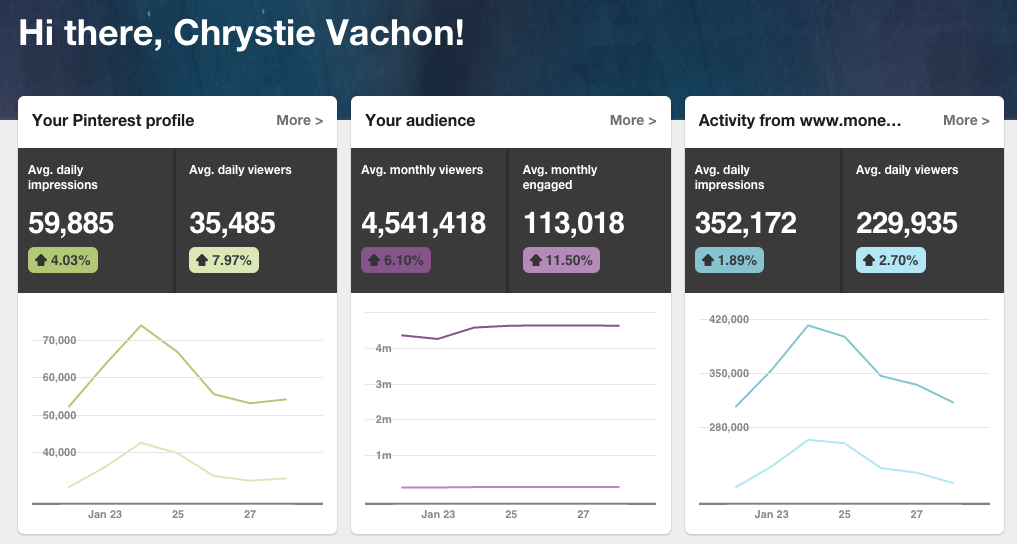
I currently receive 4,500,000 impressions a month on my Pinterest account and it serves as the #1 source of traffic to all of my sites. 4 Million!!! I would love to say that I accomplished this in a single year…but the truth is..it’s taken a while to get there. In this blog post, I’m going to share with you the strategies I used to bolster my Pinterest following.
There are several tricks & tools that you can use to get noticed on Pinterest and to drive qualified readers to your blog. Below I will reveal 7 of the most common mistakes I see bloggers making. The goods news however, is that once you figure out which mistakes you are making you can quickly fix them and launch your Pinterest profile into popularity 
#1 Mistake: Not optimizing your blog photos for Pinterest (Spoiler Alert: You NEED vertical images)
This is the #1 mistake I see most often with bloggers, they don’t optimize their blog post photos for Pinterest. You guys…this is SO crucial! Now you might be wondering…how the heck do I optimize my pins..well luckily for us…it’s pretty easy! Optimizing your blog photos means creating an attractive VERTICAL image (approx. 700 x 1100 pixels) for each of your blog posts. Pinterest research shows that vertical pins perform much higher than horizontal pins on Pinterest.

For example, take a look at the screenshot from Pinterest, which pins catch your eye? It’s the vertical ones right? Small, horizontal images get lost in the layout of Pinterest. So you want to make sure that you are creating a vertical ‘pinnable’ image for each of your blog posts.
Below you can see the two images that I created for my blog post, “How to Start a Mom Blog“. I used the same image and created two photos which serve different purposes. I try to choose an image that looks good both vertically and has a cut-off where I can also create a horizontal image as well. Next I look for warm colored images because research shows that Pinterest users prefer warm colors. Once I’ve selected the photo, I usually create the Pinterest image first. I crop & re-size the image so it is around 700×1100, and then add a text overlay (usually the title or main point of the post).

Once I’ve finished the Pinterest ‘pinnable‘ image, I crop it again and create the horizontal image to use as the featured image on my blog & on Facebook. In order for your image to show up horizontally on Facebook, it needs to be at least 470px.
So I know what you are thinking, “Ugh..that seems like a lot of work to create 2 images for a blog article” and I totally agree with you! However, it makes such a difference on Pinterest, that I definitely recommend doing this for blog posts. I even recommend going back and creating ‘pinnable’ images for your older blog posts.
Mistake #2 - Not Creating Keyword Rich Descriptions for your Pins
Newsflash, in order to be found on Pinterest for your niche, you are going to have to use some of those keywords in your descriptions, so that your pins will come up when people are searching those terms. Pinterest gives us several ways that we can tweak our Pin descriptions to optimize them for search
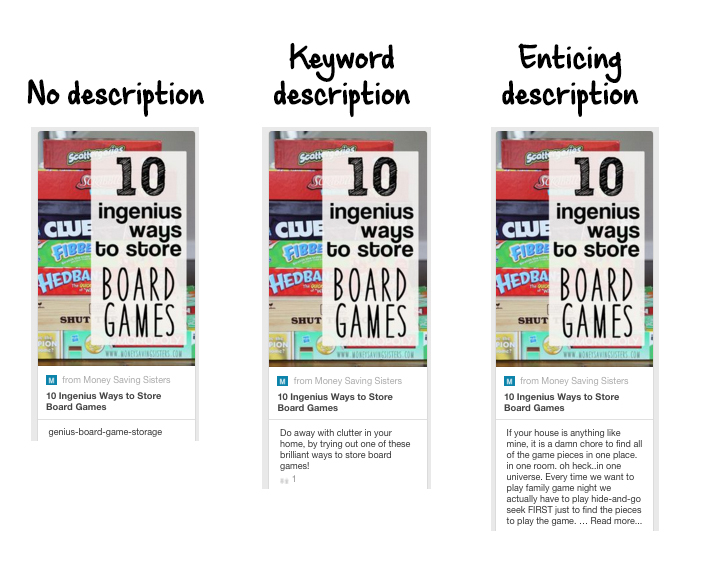
- Use keywords to describe exactly what your content is about. Above you can see two examples of a pin, one has a great keyword rich description & the other one falls flat. Instead of something like that “Top 10 Blogging Tips” you could enhance it more with, “Top 10 Blogging Tips for Beginners - Learn how to set up WordPress, write your first post & set up Google Adsense” The second description gives your audience more insight as to what they are getting with your blog post and gives Pinterest more opportunities to serve up your blog post in search.
- Compel your audience to click - The description is also a great way to entice the users to click through to your blog post by telling a story, or making them an offer, or by simply asking them to ‘read more’. Some bloggers have had success with using over-zealous descriptions like, “OMG, this is the best Maple Muffin, you HAVE to try it!” of course descriptions like that won’t work in every niche, but it’s certainly worth a try!
Mistake #3 - Only Pinning your Content Once
Remember in Pretty Women when Julia Roberts walked into the boutique she was previously kicked out of and said “Big Mistake…Big…Huge”..this is how I feel about bloggers that only pin their content once and forget about it. Your content is not a Crock Pot..it is not set it and forget it! You need to pin & re-pin your content on a regular basis.
When I finally realized that I need to pin my blog content regularly, it made the biggest impact on growing my Pinterest referral traffic to my blog. Before I saw the light, I would pin my blog post to my Pinterest board and pray, hope, wish that someone would see it and re-pin it..and then it would go viral. Um…hate to break it to you..but that’s the way it happens. The real way that pins go viral is by regularly pinning them.
I now use BoardBooster to schedule all of my pins (which I will talk more about later!), but before I did, I used a spreadsheet to keep track of my Pins & when I pinned them. I would then visit the spreadsheet everyday and pin the posts that hadn’t been pinned in a while. I usually space out the pins about 3-4 weeks between re-pins.
Won’t that annoy my followers?
No. Here’s the thing, a small percentage of your followers see your pins at any given time. There is so much content on Pinterest that after a while, your Pin is not even served to your followers anymore. AND hopefully you are growing new Pinterest followers everyday..whom also haven’t seen your older pins. I have been doing this strategy for at least 2 years now and have never received a complaint from a follower!
via GIPHY
Mistake #4 - Not Joining Group Boards
You guys…THIS is a game changer! If you don’t belong to any Pinterest group boards, stop everything you are doing and find some boards to join!
Group boards are Pinterest boards that allow for contributors, which means you can pin your blog posts on other people’s boards! How cool is that? Joining group boards allows you to get your content in front of people who don’t currently follow you, but ARE interested in your niche.
How do I find Group Boards to Join?
There are a couple of ways that you can find relevant group boards to join.

Pin Groupie - Pin Groupie is a directory of Pinterest group boards. It’s a great tool to find group boards in your niche.
- Start by searching for your niche in the description field
- This will bring up a list of the group boards
- Take some time and visit each board and see if your pins would be a good fit
- If you think you could add value to the group board, reach out to the board owner and ask to join
But here’s where it can get a little frustrating…
Some of the group boards don’t have an email listed in the description in order for you to contact them to join, OR you send a request and never hear back. Here are two ways to combat that:
- Try searching your niche + email in the Description section (ex. “Baking email”). This will bring up all of the boards that are in the Baking niche but ALSO have the word email in the description. Where there is the word email…there is usually an email address to send a request to.
- If you don’t hear back from the board owner, you can this: Follow, re-pin & comment on their pins to get noticed and then re-send your request.
Facebook Groups
I personally have the best luck finding new group boards in Facebook groups. There are a handful of Pinterest Group Board sharing groups on Facebook that you can join where group board owners ask for contributors for their boards. This is my favorite Pinterest sharing board.
How does it work?
Essentially group board owners will post a request looking for contributors. If your pins would be a good fit for the board, then you can show your interest by leaving a comment on the request with your email address (the one attached to your Pinterest account). Once they add you to the board, you should get an invitation in your Pinterest notifications. From there, you can choose to ignore or accept the request. If you accept you will instantly be able to pin to the group boards.
Group Board Etiquette
Once you’ve been invited to a group board, you have to act accordingly and each board has it’s own set of rules & nuances. You don’t want to go crazy pinning your stuff all over the place..not yet anyway! The first thing you’ll want to do is look for any rules in the board description. Some board owners will say things like “Only 3 pins per day”, etc. Once you know the rules and get a sense for the board, you can start pinning your blog posts to the group boards.
Mistake #5 - Not Pinning Consistently
Now that you’ve got your photos all optimized, your keyword descriptions on point and you’ve joined some group boards, it’s time to get all of things working like a well oiled machine! Consistency is key in Pinterest! You have to pin often and pin high quality stuff.
Earlier I mentioned how I used to use an Excel spreadsheet to keep track of my pins, my group boards and my pinning schedule. That was until I found out about BoardBooster…and then I threw my spreadsheet out the window!

Boardbooster is a Pinterest scheduling tool that allows you to auto-schedule pins to your boards & to the group boards. This tool has been sooo helpful with automating my group pinning! Essentially, you tell Boardbooster which pins you would like to pin to certain boards and at what frequency, and then let it run! It automatically posts the designated pins on the boards you selected on the schedule you selected!
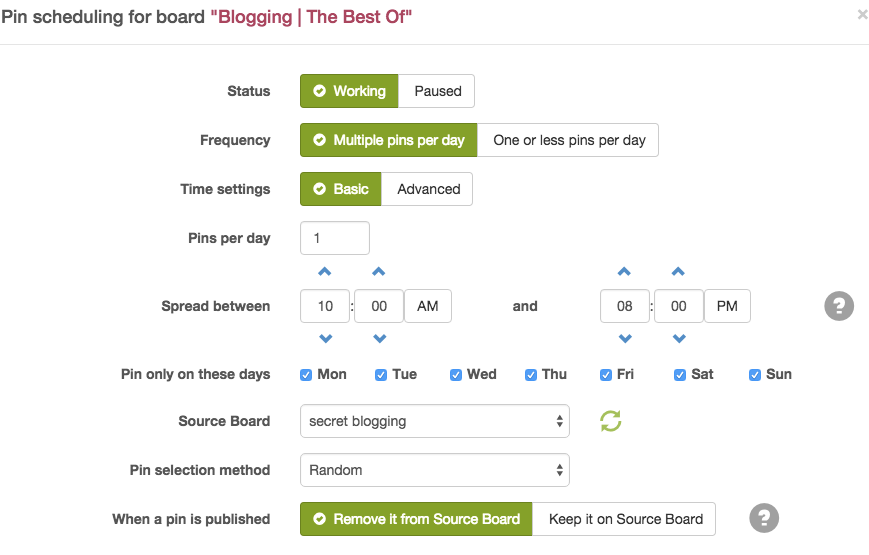
The screenshot above is an example of the scheduling tool in Boardbooster. This is my setup for the Blogging: Best of Group Board. As you can see I have it set up to pin 1 blog post per day between the hours of 10am-8:00pm. You can set up your schedule to share as many or as few and during whichever hours you choose.
(Bonus tip: If you refer any of your blogger friends to Boardbooster, you can earn $5.00 through their referral program! I’ve used my link in this post)
via GIPHY
Mistake #6: You don’t have social sharing buttons on your site
In order for people to share your blog posts on Pinterest, you need to make it dead simple for them to share…and you can do this easily with social sharing buttons. Social sharing plugins come in many different forms and there are literally dozens of plugins to choose from..but the point is..you NEED them on your blog!

You can use SumoMe to add floating share buttons on the side of your website

You can use the Pinterest Pin it Button Plugin to get a Pin it Button appear when a reader hovers over an image
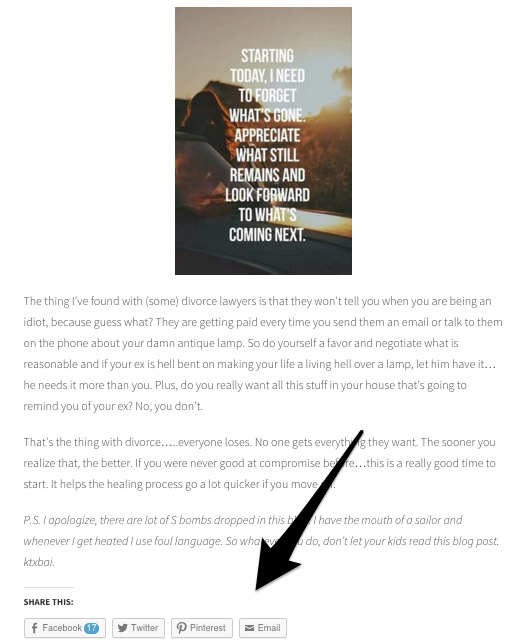
You can also use the Social Sharing buttons available in WordPress Jetpack to display sharing buttons on your posts
Some of my favorite social sharing plugins are:
Mistake #7 : Not Joining Blogger Sharing Facebook Groups
One mistake that you may not even know that you are making is not joining blogger groups on Facebook. Now these groups are different than the ones I told you about in #5. There are dozens of Facebook groups designed specifically for bloggers to share & promote each other’s social media and blog posts. Several of these groups run Pinterest threads which encourage pinning other blogger’s content. These groups are GREAT for new-ish bloggers who are looking to get traffic & pins to their Pinterest boards.
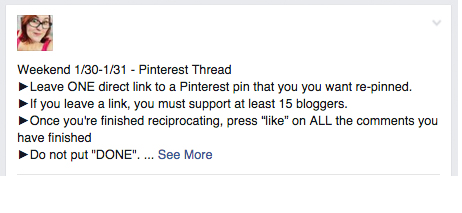
The image above is an example of a Pinterest share thread within one of the Facebook share groups. Usually you leave a link and then in return are required to re-pin a certain number of other pins! This is without a doubt a great way for new bloggers to get some visibility on Pinterest & from other bloggers.
Here are some of my favorite blogger groups:
- I Heart Pinterest - Share your Pins
- Grow your Blog
- Blogging Boost
- The Sparkle Life
- Inspired Bloggers Network
- Blog & Business: Moms who do it all
- Blog Engagement & Promotion Group
- Naptime Nation *NEW*
Now that you’ve read all about these Pinterest mistakes, I hope that you are going to fix your wild ways and get your Pinterest game on point! Do me a favor, if you liked this blog post, please share it with someone who could use this information. Also, follow LivingforNaptime on Pinterest!


I really needed some help boosting my Pinterest traffic. I’m going to work on finding more group boards to join and also check out Board Booster. These tips are great. Thanks Chrystie!
Yes..group boards are amazing! Good luck
Suchh great advice! Thanks so much for always sharing such good and juicy info for newbies!!
Thanks for commenting!
Thanks so much for these tips. As a new blogger, I haven’t made the time to try to gain traffic through Pinterest, but those days are over. I didn’t see where you said how to hide the vertical pinterest-friendly image from a blog post- did I miss it? Also, what are the best times of day to post to pinterest for the most traffic?
Hi Jennifer! Sheesh, I forgot to put that tip in there, but essentially, you add the image to your blog post and then set the pixels to 1×1. For example, your photo may be 400px wide x 600px tall . But what you would want to do is change it to 1×1 pixels. Hope that helps!
Hi Chrystie, Wow, what an informative article, I’m going to pin for later. (haha - addicted) One of my blogging goals for this year is definitely to grow my blogging connections through Pinterest. You seem very wise on all this blogging and tbh a complete inspiration. Would love to connect sometime and pick your brain. I am still such a novice, but then I have only been getting serious with blogging for less than a year, I just can’t believe what a steep learning curve I have been on in that time and continue to be. I have liked you on all the social media links I can see for you and I hope you get the chance to do the same for me
  Hope you have a great week.
Hi Gill! Yes of course, shoot me an email at [email protected] if you have any specific questions
Bookmarking this page! I am SO new to the pinterest game, I really don’t know what I’m doing at all actually!
It’s amazing to see your progress with this and how far you’ve come. Thanks for sharing, I am fine tooth combing this later!
xox
Krista
http://www.hundredblog.com
Awesome!
Thanks for this! Some really great points. I actually came to your post via the “grow your blog” facebook group, so yup, they work!
These tips are so helpful, thank-you! Pinning
Thank you Cara!
Such awesome tips! Thanks for sharing!
Question. I use a 400×600 vertical image on the blog, but I know the ideally it should be 700×1100. How can I use the blog image on the blog, but when people pin, they pin the Pinterest 700×1100 image?
You can create a 700×1100 image and then change the width to 400×628 when you insert it into the blog post. The real size of the image will still be 700×1100, but will only display on your blog page at 400×628. Hope that helps!
This is a fantastic post! I do a lot of these already, and honestly I’d have to say my traffic comes from Pinterest quite a bit-probably more than anywhere else. The one thing I still have to work on is the scheduling pins, I have Tailwind with Hootsuite, but I haven’t figured it out yet.
I used both Tailwind & Boardbooster for a time, but I agree with you..Tailwind takes some time to figure out
These are all great tips and great reminders from time to time! Sometimes I am not consistent, and I need to work on that! Thanks for this great post!
That was my biggest problem, I was not consistent with Pinterest until I got Boardbooster
I really need to start using Board Booster! These are very helpful tips!
Yes..Boardbooster has really streamlined my Pinning
I just went to a mini blog conference that talked all about these key Pinterest tips! I’ve recently started implementing them and I’ve noticed a huge difference! Especially the consistent pinning and not just of your own stuff! Great advice!
Penn&Quill || Robin
Awesome!
I have so much to learn in the blogging world… to include Pinterest! There is so much great information in this post - thanks so much!
Awesome Clare! Glad you found this post helpful
Great tips! Thanks!
Awesome tips. I’ve been thinking about joining a pin scheduling service for a while now, but I’m intimidated by how complicated they all seem and how expensive they are. Would it be worth it to join with the cheapest option available or could I just save my time and do that work on my own?
I think I pay $20 a month for Boardbooster and I think it’s worth it simply for the fact that I don’t have to do anything. If left to my own devices I will forget and procrastinate
I definitely need to step my Pinterest game up. These are fantastic tips - thanks for sharing!
Les…Pinterest traffic can be great! Good Luck!
I’m blown away with your Pinterest traffic - Seriously that’s commendable!!! I’m working on increasing my Pinterest and these tips are really helpful.
Thank you!
Yes! I agree with every single one of your tips. I haven’t started scheduling yet because I try really hard to tailor each pin to fit the group boards I pin to.
I do a combo actually, I still handpin to some of my groups and others I use Boardbooster
Love this post, thanks for sharing all your insight!! Will be trying these ideas right away
Awesome!
These are FANTASTIC Tips! I have been trying to figure out the traffic driving stuff. It’s not an easy nut to crack. But, I think these tips will help.
This so informative. I have been really trying to master pinterest without much success but your post has really broken down the steps for me.I am so going to share this with my friends. Thank you!
I’m definitely guilty of some of these. Thanks for tips.
Wow! These are amazing tips! Thanks so much! I just started optimizing photos for pinterest, but didn’t know about the warmer colors. And I’m soooo about to jump on boardbooster right NOW!
Great content! I didn’t know any of this! 😅
So many great tips! Pinterest is definitely an area I struggle in and I am trying to work on it. Thanks for all of this!
Shannon
Clothes & Quotes
great tips! I definitely think all of these things help me with interaction on pinterest
Hi again Chrystie, just come back to try and implement what I have learnt from this article. Found a overlaying app I really like, but not sure where I need to go in order to re-size first. What do you us to do this? x
We’re using WordPress over at Food Revolt and have a very popular article ( http://www.foodrevolt.com/food-truck-wedding-reception/ ) that helps future brides plan for their food truck wedding… but outside of the “featured image” in WordPress, how do we format the post for Pinterest when it’s shared? You spoke about having two formatted images but how do we account for both specialized images in the same post? Thanks and great article BTW!
Hi Travis!
Apart from the featured image, you can include the Pinterest optimized image at the bottom of the post. You will see in many of my blog articles, the first image in the blog post is a horizontal ‘featured’ image, but at the bottom of the post, you will see a vertical “Pinterest-worthy” image”. When a reader attempts to Pin your blog post, the image will come up as an option. Hope that helps!
This is awesome! I’m reading your post in between feeding the baby and eating dinner lol This is so helpful!
I love all your posts, you explain things I’ve never heard of before! I have a question thought, how many times are you pinning a photo from one blog post? Like, how many times is the exact same photo being pinned by you to these boards?
Thank you Jillian! My photo is being pinned to the boards about 1-2 a month
What program do you use to do all your work with the photos?
Omg! Thanks for this. I need to change my Pinterest game asap. Now I know why I’m not having much success!!
Mel | http://www.thegossipdarling.com