
One….only one! Installing Google Analytics on your WordPress blog is super easy and I can’t wait to show you how to do it!
Now that you’ve set up a mom blog, it’s time to install Google Analytics to find out how people are finding your blog and how many people are visiting your blog on a monthly basis! Google analytics is a must-have!
Google Analytics gives you insight into the traffic on your site. For example, with Google analytics installed you can see how many people are visiting your site at this very second or in the last week! You can find how how they found your website whether it was through Google, Facebook or another blog. You can even find out which queries they searched in Google to find your site! All of this information can be extremely valuable to you as you are trying to build your blog!
How to install Google Analytics on a WordPress site
1. Go to Google.com/Analytics & click on “Sign In”

2. Sign in with your Google/Gmail Account or create one if you do not have one
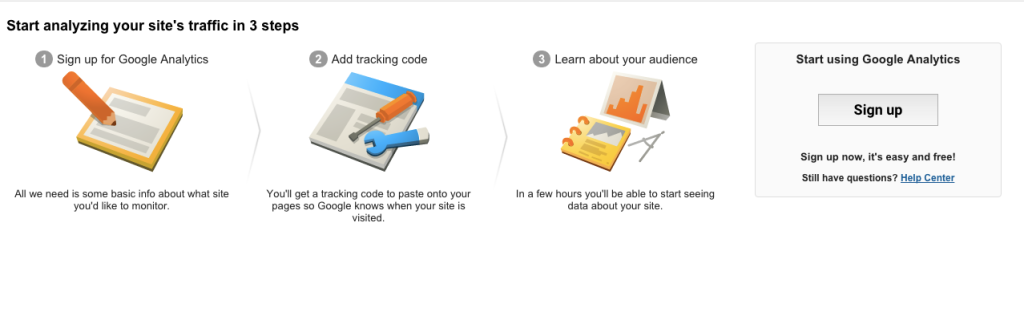
3. Enter the website details in all of the fields & Click on “Get Tracking Id”

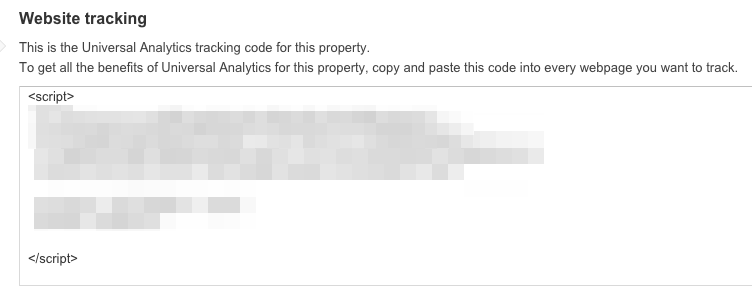
4. Copy the tracking ID and head back over to the dashboard of your self-hosted WordPress site
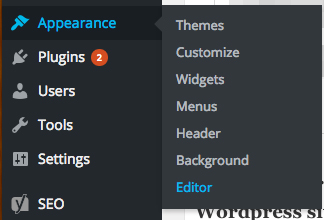
5. Click on Appearance-> Editor
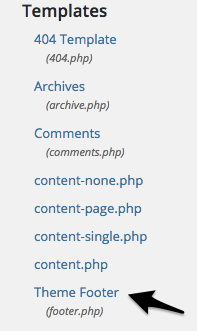
6. Open the footer.php file on the right hand side of your template files.
7. Locate the </footer> tag at the bottom of the HTML code and copy your Google Analytics code right before the </footer>.
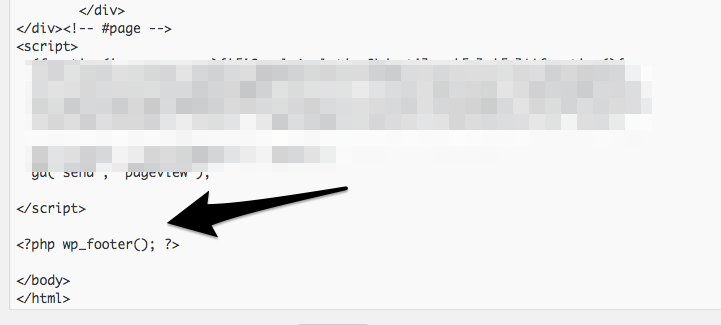
Now that you’ve got Google Analytics installed on your blog, it can take a few hours and up to a day for the information to show up in your account. One thing you can do is check out the Real Time Analytics to see if anyone is currently on your blog (P.S. Checking real time analytics is very addicting!)
Once the analytics has begun reporting you can see how many people are visiting your site per day, where they are coming from and which Google searches they are performing to find your blog.


Been trying to figure this out for some time! Thanks for sharing 😘😘😘
GA is such a pain in the neck for me . I just don’t get it. I love your step by step directions and hopefully I can get GA set up FINALLY!